


Do you have buyers or training managers who need to purchase multiple seats in a course for their team, and you're tired of manually creating codes, tracking rosters, and fielding emails about lost access? By combining bulk purchasing, redemption codes, seat-based pricing tiers, and customized order confirmations, you can give buyers a self-service experience to purchase, distribute, and track seats without constant admin intervention. This play also covers how to automate the entire flow via API for organizations running external eCommerce or CRM-triggered provisioning.
If any of these requirements fit your end goal, this may be the play for you.
Requirement 1: You have buyers (training managers, partner admins, team leads) who need to purchase multiple seats in a content object at once rather than one at a time.
Requirement 2: You want to offer volume-based pricing, the more seats someone buys, the lower the per-seat cost.
Requirement 3: You need the buyer to be able to distribute access to their learners without your team manually creating codes or managing rosters.
Requirement 4: You want learners to be able to redeem their seat using a simple code or pre-populated link.
Requirement 5: You want to customize the purchase confirmation experience so bulk buyers get clear instructions on how to distribute codes to their team.
Requirement 6: You want to automate code creation and distribution through your CRM, middleware, or external e-commerce system via API.
Bulk Purchasing (toggle on content objects)
E-Commerce / Seat Pricing Tiers
Redemption Page Layout
Order Confirmation Customization (paywall and terms)
Panorama Landing Pages (optional - for partner-specific redemption)
API - Redemption Code Endpoints (optional - for automation)
Description: Turn on bulk purchasing for the content object you want to sell in volume. This enables seat-based pricing tiers and generates redemption codes automatically when a buyer completes a purchase.
Configuration:
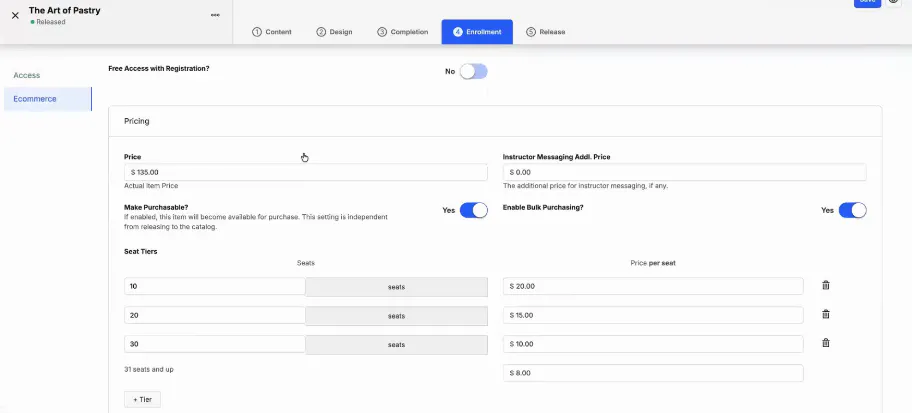
Navigate to the content object you want to enable for bulk purchasing (e.g., a course like "The Art of Pastry").
Go to the Enrollment tab and open the E-Commerce settings.
Ensure the content is set to purchasable.
Toggle on Enable Bulk Purchasing.
Define your seat pricing tiers. For each tier, specify the number of seats and the price. For example: 10 seats at $200 ($20/seat), 20 seats at $350 ($17.50/seat), 30 seats at $450 ($15/seat). This is where you build in volume discounts - the more seats a buyer purchases, the lower the per-seat cost.
Save your settings.
Risk and Mitigation Strategy:
Seat pricing tiers are separate from standard single-seat e-commerce pricing. A single learner purchasing the course for themselves will see the standard price; bulk pricing only appears to buyers selecting a seat package.
Alt pricing (e.g., reference-field-based pricing at $0) applies to individual single-seat purchases, not to bulk seat packages. If you need to offer free bulk access, you cannot use the bulk purchasing flow with a $0 seat tier - you would need to handle that through manually created redemption codes or API-created code groups instead.
Coupons are currently supported for courses and micro courses but not for learning paths. If your volume discount program involves learning paths, bulk purchasing with seat tiers is your primary pricing mechanism. There is an existing product idea in community to add coupon support for learning paths - upvote it if this is a need for you.
Description: Set up the page where learners will go to redeem the codes they receive from their buyer/administrator. This is the learner's entry point into the content after a bulk purchase.
Configuration:
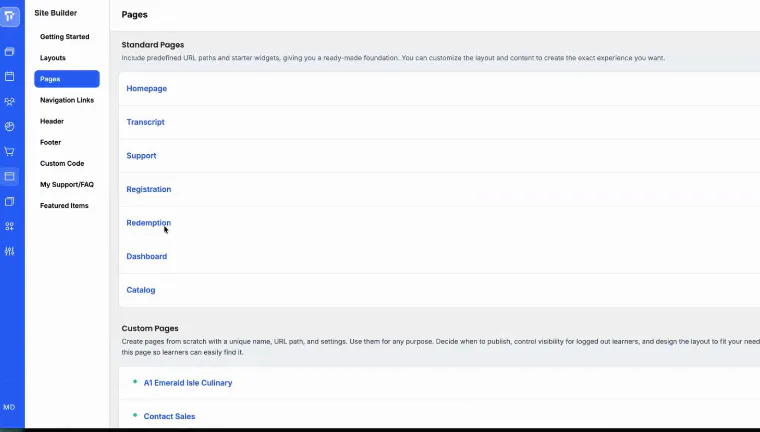
Navigate to your site's Redemption Page layout (typically accessible at /redeem on your site).
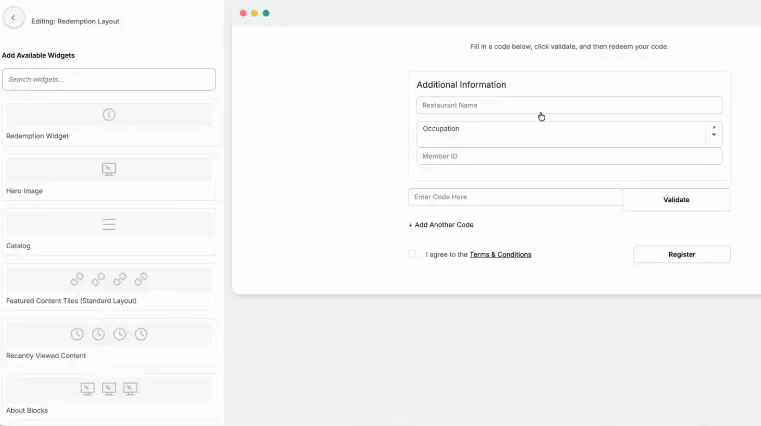
The page includes a Redemption Widget by default - this is where learners enter their code and validate it.
Customize the page to add context for learners. Consider adding: a hero image or branding, a text block with instructions (e.g., "Your administrator has purchased a seat for you. Enter your code below to get started."), and any registration fields you need to capture (e.g., occupation, organization, membership status).
Keep the layout simple. The learner's experience should be: arrive at the page, enter or see their pre-populated code, validate, complete registration (if new), and start consuming content.
Risk and Mitigation Strategy:
The redemption page works for all sign-in types. If the learner is already logged in, they skip registration and go straight to code validation. If they are new, they complete registration first and then the code is applied.
If you are using Panorama, every Panorama landing page includes a redemption widget by default. You can use this for partner-specific redemption flows without building a separate page — learners arriving at a Panorama landing page can enter their code directly.
Description: The default order confirmation is built for individual end users, not for administrators buying seats on behalf of a team. Customize the confirmation text so bulk buyers know exactly how to distribute codes and where to send their learners.
Configuration:
Go to your content object and open the Enrollment → E-Commerce settings.
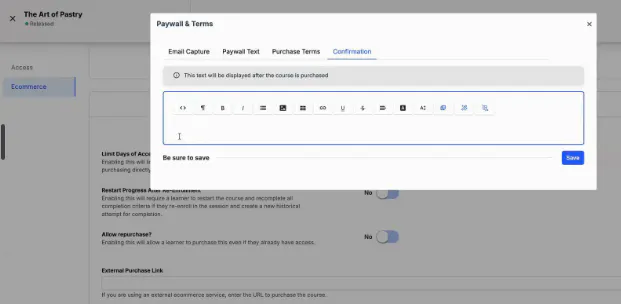
Scroll to Advanced Settings and click Edit Paywall and Terms.
In the Confirmation Text field, add instructions tailored to bulk purchasers. Use the WYSIWYG editor to format your message. Example:
"Thanks for your purchase! If you are an administrator purchasing multiple seats for your learners, you can redeem your codes at [yourdomain.com/redeem]. Check your email for a CSV attachment with your full code list. To view or re-download your codes at any time, go to Account → Purchases in the platform."
You can include links, images, and HTML in this field. Consider linking to a custom page in the platform with more detailed distribution instructions if your confirmation needs to serve both individual buyers and bulk purchasers.
Save your changes. This confirmation text appears both on-screen at the time of purchase and in the confirmation email sent to the buyer.
Risk and Mitigation Strategy:
This confirmation text appears for all purchases of this content object - not just bulk purchases. If you sell the same content to individual learners and bulk buyers, write a message that works for both audiences. For example: "Individual users - continue to your dashboard to start learning. Bulk purchasers — go to Account → Purchases to view and distribute your codes, or send your learners to [yourdomain.com/redeem]."
Price-zero transactions (alt pricing at $0) still go through the checkout flow and will display this confirmation text. If you have free learners going through the purchase flow, ensure the confirmation message does not confuse them with bulk-purchase-specific language.
To preview what the confirmation looks like, run a test user through the full purchase flow. You can also reference sample communications in the TI Academy course on bulk purchasing for examples.
Description: Once the buyer completes their purchase, they receive their codes immediately and have ongoing access to manage them. Understanding this flow helps you reduce support requests and guide buyers who need help.
Configuration:
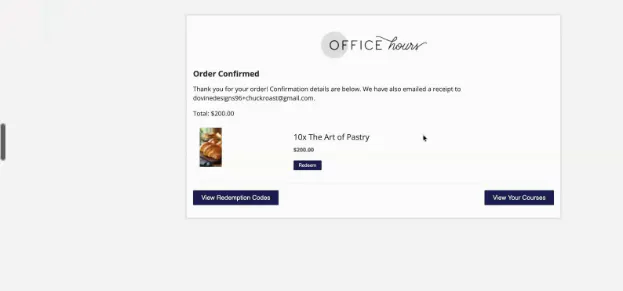
At the time of purchase, the buyer sees a confirmation screen with a View Redemption Codes button. Clicking it displays all purchased codes, the associated content object, and the redemption status of each code (redeemed or unredeemed).
The buyer also receives a confirmation email with a CSV attachment containing all codes.
At any time after purchase, the buyer can return to Account → Purchases in the platform to view unredeemed codes, download the code list again, redeem a code for themselves, and send a redemption link directly.
As an admin, you can also look up the buyer in Manage Users, navigate to their account, and view their purchased codes. This is useful when a buyer contacts you saying they lost their codes - you can retrieve them without needing the buyer to log in.
Risk and Mitigation Strategy:
The buyer does not need to return to the platform after purchase if the email confirmation and CSV are sufficient for their distribution workflow. Make this clear in your confirmation messaging to reduce unnecessary login support requests.
The redemption tracking view (redeemed vs. unredeemed) is a useful tool for buyers managing annual training budgets. If they purchase 20 seats at the start of the year, they can track how many have been used over time and follow up with learners who haven't redeemed yet. Highlight this capability in your buyer communications.
Description: Configure how learners actually redeem the codes they receive from their buyer. There are multiple redemption methods - choose the one that creates the least friction for your audience.
Configuration:
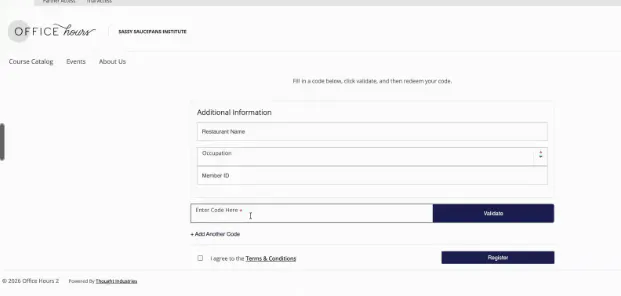
Method 1: Standard Redemption Page
The buyer sends the learner a code and the URL to your redemption page (e.g., yourdomain.com/redeem).
The learner navigates to the page, enters the code, clicks Validate, completes registration (if new), and is enrolled in the content.
Method 2: Pre-Populated Redemption URL
Append the code to the redemption URL: yourdomain.com/redeem/[CODE].
When the learner clicks this link, the code is already populated in the redemption widget. They click Validate and proceed. This reduces friction and eliminates the risk of the learner mistyping the code.
Method 3: Panorama Landing Page Redemption
If you are using Panorama for a specific partner or client, send learners to the Panorama landing page URL.
The Panorama landing page includes a redemption widget by default. Learners enter their code and proceed through the standard flow.
You can also pre-populate the code in the Panorama URL the same way as Method 2.
Risk and Mitigation Strategy:
Learners must have an account to redeem a code. If they are new to the platform, they will complete registration as part of the redemption flow. SSO sign-in is supported - if your learners authenticate via SSO, they will go through SSO as part of redemption.
The pre-populated URL method (Method 2) is the lowest-friction option and is recommended when the buyer is distributing codes via email. It eliminates the most common support issue: learners entering codes incorrectly.
If a code has already been redeemed (all seats used), the learner will see a validation error. Ensure the buyer knows how many codes they have and how many seats each code represents so they do not over-distribute.
Description: For organizations using external e-commerce, CRM-triggered provisioning, or middleware, the entire bulk purchasing workflow can be automated through the TI API. This is ideal for B2B deals closed outside the platform, partner provisioning, or any scenario where you want to eliminate manual code creation.
Configuration:
Use the Create Redemption Code Group API endpoint to programmatically create a new group of codes. You specify the content object, the number of seats, the code label, expiration date, and any other settings.
Use the List Redemption Codes endpoint to pull all codes in a group, including their redemption status.
Use the Get Code Details endpoint to query individual codes by label. If you name your code groups consistently (e.g., "art-of-pastry-partner-abc"), you can query by label without needing to pull the full list.
Feed the code list into your distribution mechanism - e.g., a HubSpot email sequence, a Salesforce-triggered message, a Mailchimp campaign, or a Microsoft Outlook distribution.
A common automation pattern: a Closed Won deal in Salesforce triggers middleware (e.g., Zapier, Workato, custom integration) to call the TI API, create a code group with the appropriate number of seats and content access, pull the code list, and send the codes to the buyer via your email platform - all without any manual admin action.
Risk and Mitigation Strategy:
The API can create and retrieve codes, but TI does not send the distribution message in an API-triggered flow. You need an external mechanism (email platform, CRM, middleware) to deliver the codes to the buyer or learners.
API automation requires middleware that can make API calls and handle the orchestration logic. If you do not have middleware in place, Thought Industries Professional Services can build and manage this flow for you.
If you create code groups with meaningful labels (e.g., "partner-name-content-date"), you can query codes by label rather than pulling the full list, which simplifies your integration logic.
For organizations using external e-commerce (not TI native e-commerce), the API flow is the primary method to create and distribute codes. Everything shown in the UI demo above still applies - codes created via API behave identically to codes created through bulk purchasing in the platform.
Alt pricing at $0 does not work with bulk seat packages. Seat pricing comes from the tier configuration, not from learner reference field-based alt pricing. If you need free bulk access, create code groups manually or via API instead.
Coupons are not supported for learning paths. If your volume discount program involves learning paths, use seat pricing tiers as your discount mechanism. Upvote the existing community idea for learning path coupon support if this is a gap for you.
The confirmation text appears for all purchases, not just bulk. Write a message that serves both individual and bulk buyers, or link to a separate page with bulk-specific instructions.
Learners must have an account to redeem a code. Whether through native registration or SSO, the learner will need to complete sign-in as part of the redemption flow.
TI does not send distribution messages in API-triggered flows. You need an external email or CRM mechanism to deliver codes to buyers or learners.
Pre-populated redemption URLs are the lowest-friction option for learners. Use the format yourdomain.com/redeem/[CODE] to eliminate mistyped codes and reduce support requests.
Bulk purchase codes and tracking are accessible from the buyer's Account → Purchases tab and from Manage Users on the admin side. If a buyer loses their codes, you can retrieve them without asking the buyer to log in.
Price-zero transactions still trigger the checkout flow and confirmation messaging. Be aware of this if you have free learners going through a purchasable content flow - your confirmation text will appear for them as well.