

Description:
Post a banner on any page layout to highlight an announcement to your learners. Use a combination of Snippets and the Asset Library to keep the banners on hand and easily updated across multiple pages.
User View:
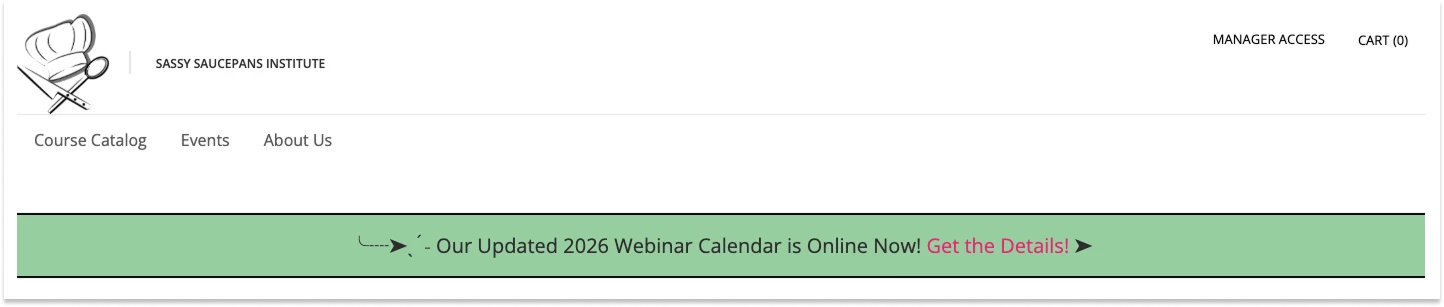
Snippet Code:
Create a Snippet for each version of your banner to keep them at your fingertips in any WYSIWYG.
Snippet Example for Announcement:
<div style="background-color:#a1d4aa;border-bottom:2px solid black;border-top:2px solid black">
<p></p>
<p style="text-align:center"><span style="font-size:20px">╰┈➤ˎˊ˗ Our Updated 2026 Webinar Calendar is Online Now! <a href="https://www.thoughtindustries.com" target="_blank" rel="noopener">Get the Details!</a> ➤</span></p>
<p></p>
</div>Snippet Example for Maintenance:
<div style="background-color:#f2e48a;border-bottom:2px solid black;border-top:2px solid black">
<p></p>
<p style="text-align:center"><span style="font-size:20px">╰┈➤ˎˊ˗ Please note our site will be down from 2 AM to 4 AM EST for essential security upgrades on February 1, 2026. We apologize for any inconvenience.</span></p>
<p></p>
</div>
Asset Library Code:
Create a Rich Text block in the Asset Library to house your reusable block. Once it’s in the Asset Library, you can pull it into multiple site pages via a Single Column widget. Then if you need to update the banner or switch it out, you can reference your Snippets or simply edit some text. Save it one place (the Asset Library) and have your changes reflected on all pages.
Reference one of your previously created Snippets to add the code in the text block. Adjust the text, colors, and links as necessary and save!
Adding Banner to Pages:
When you edit any page in the Site Builder, pull in a Single Column WYSIWYG. Then click the Asset Library icon in the WYSIWYG and choose your previously created Rich Text Block with your banner. Make sure to Save!

These CSS Blocks are designed for a default Thought Industries instance with no existing Custom Code, so any customizations you’ve added may generate conflicts.