
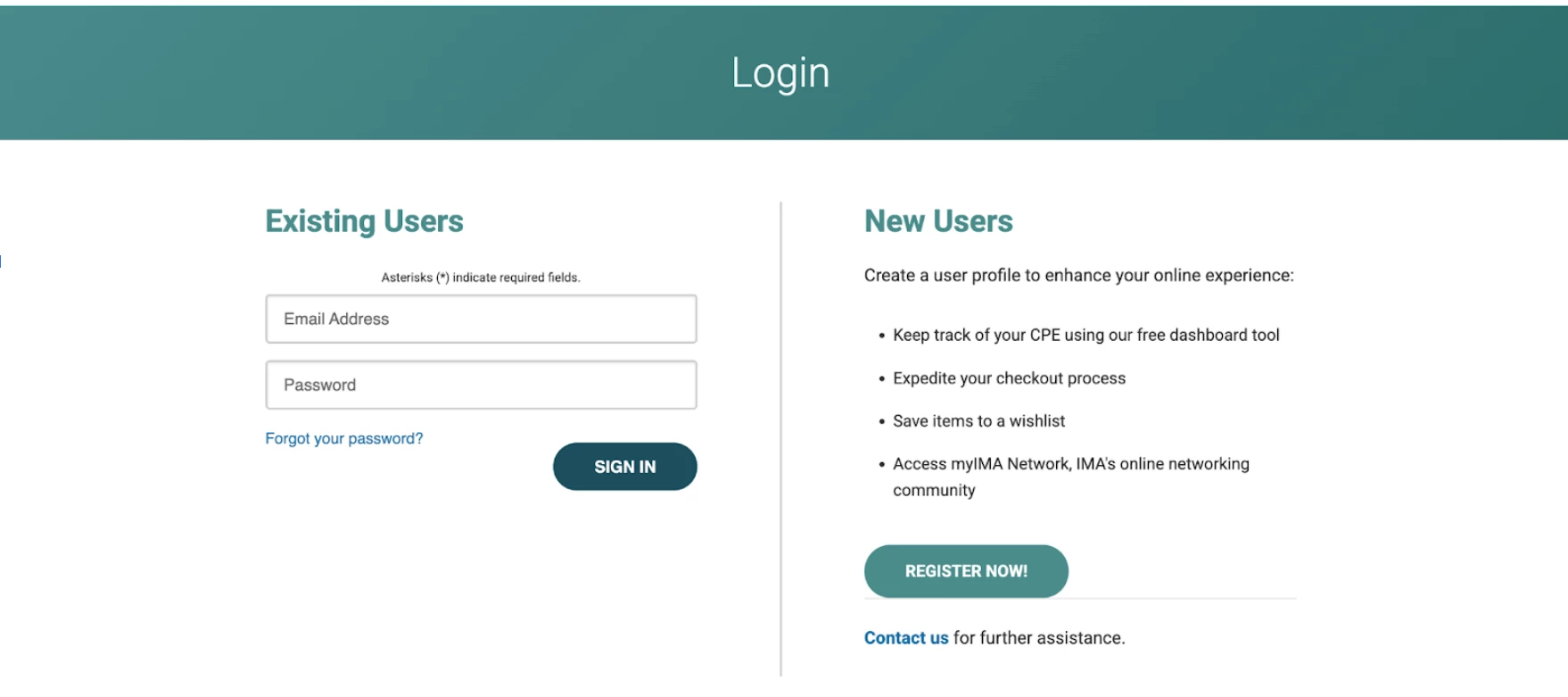

When to Use & Primary Value
When to Use: When you want a structured, enterprise-style experience with strong branding and clear separation of users.
Primary Value: Builds trust and clarity through a professional, familiar layout that guides users confidently.
What You Need
- Thought Industries admin access (Manager/Admin)
- Access to:
- Settings → Connections → Tracking Scripts
- Site Builder → Custom Code → CSS
- Your destination URLs ready (SSO + sign-up)
Important Placeholders to Replace
In the code you’ll see placeholders like:
[INSERT_SSO_URL]→ replace with your actual SSO URL/learn/sign_up→ replace if your sign-up path differs- Brand text (“Your Academy”) → replace with your brand
- Brand colors (#0891B2) → replace with your brand
Important note about the native form selector
These guides assume the native sign-in form selector is:
$('form.session__form')
If you suspect your theme uses a different selector, inspect the sign-in page HTML and update the selector in the Footer script.
Hidden Elements to know about
$form.hide();
- What it hides: The native sign-in form (
$('form.session__form')). - When: It hides the native form when the page loads, allowing the custom multi-path card layout to be displayed instead.
$('.ti-opt1').hide();
- What it hides: The custom multi-path card layout (
< div class="ti-opt1">). - When: It is called within the click handler for buttons with the class
.ti-showform(e.g., the "Login →" buttons for Partners and New here?), which hides the custom layout and then shows the native sign-in form ($form.show();).
Where to Paste Things
1) Header Scripts
Settings → Connections → Tracking Scripts → Header Scripts
2) Footer Scripts
Settings → Connections → Tracking Scripts → Footer Scripts
3) CSS
Site Builder → Custom Code → CSS
Don’t forget to save after you paste code into these areas!
Steps
Step 1: Add jQuery (Header Scripts)
Paste into header scripts:
<!-- jQuery Library - Required for custom sign-in UI -->
<script src="https://cdnjs.cloudflare.com/ajax/libs/jquery/3.4.1/jquery.min.js" integrity="sha256-CSXorXvZcTkaix6Yvo6HppcZGetbYMGWSFlBw8HfCJo=" crossorigin="anonymous"></script>
Step 2: Add jQuery (Footer Scripts)
Paste into footer scripts:
<!-- Option 4: Banner + Two Columns -->
<script>
(function() {
  'use strict';

  function init() {
    if (typeof jQuery === 'undefined') { setTimeout(init, 50); return; }

    jQuery(function($) {
      if (!window.location.pathname.includes('/sign_in')) return;
      if ($('.ti-opt4').length) return;

      var $form = $('form.session__form');
      if (!$form.length) return;

      var html = `
        <div class="ti-opt4">
          <div class="ti4-banner">
            <h1>Login</h1>
          </div>

          <div class="ti4-body">
            <div class="ti4-col">
              <h2>Existing Users</h2>
              <p>Sign in to continue.</p>
              <div class="ti4-formslot"></div>
            </div>

            <div class="ti4-divider"></div>

            <div class="ti4-col">
              <h2>New Users</h2>
              <p>Get started with a new account.</p>
              <ul>
                <li>Access your courses and resources</li>
                <li>Track progress and completions</li>
                <li>Stay up to date with new content</li>
              </ul>
              <a class="ti4-btn" href="/learn/sign_up">Register →</a>
            </div>
          </div>
        </div>
      `;

      $form.before(html);
      $('.ti4-formslot').append($form);
      $form.show();
    });
  }

  init();
})();
</script>
Step 3: Add CSS
Paste into Custom Code:
/* Option 4: Banner + Two Columns */
.ti-opt4 { max-width: 1200px; margin: 40px auto; padding: 0 20px 20px; }

.ti4-banner {
  width: 100%;
  background: linear-gradient(90deg, #4A8C8C 0%, #2F6F6F 100%);
  border-radius: 14px 14px 0 0;
  padding: 22px 26px;
}
.ti4-banner h1 { margin:0; color:#fff; font-size: 2rem; }

.ti4-body {
  background: #fff;
  border: 1px solid #e7e7e7;
  border-top: none;
  border-radius: 0 0 14px 14px;
  padding: 26px;
  display: grid;
  grid-template-columns: 1fr 1px 1fr;
  gap: 22px;
  box-shadow: 0 2px 14px rgba(0,0,0,.06);
}

.ti4-col h2 { margin: 0 0 8px; color:#1a1a1a; }
.ti4-col p { margin: 0 0 14px; color:#666; }
.ti4-col ul { margin: 12px 0 18px; padding-left: 18px; color:#333; }

.ti4-divider { background: #e7e7e7; width: 1px; }

.ti4-btn {
  display:inline-block;
  padding: 10px 16px;
  border-radius: 999px;
  background: #1a1a1a;
  color:#fff;
  text-decoration:none;
  font-weight:700;
}

@media (max-width: 900px) {
  .ti4-body { grid-template-columns: 1fr; }
  .ti4-divider { display:none; }
  .ti4-banner { border-radius: 14px; }
  .ti4-body { border-radius: 14px; border-top: 1px solid #e7e7e7; }
}
Final Step: Save & Test
- Make sure you saved your Tracking Scripts and CSS.
- Open an incognito window.
- Visit:
https://[your-domain].thoughtindustries.com/learn/sign_in - Confirm:
- Buttons go to the right destinations
- Native sign-in form works
- Mobile layout stacks correctly
Testing your entire user sign in flow is so important! Please take these code blocks as a starting place and adjust as needed to fit your site and use case.